

Note: This tutorial is for tech-savy people and it only applies to Community Builder 1.9 database scheme.
Community Builder has various field types that take values from a predefined set of option values.
The drop-down single/multiple select field type, the radio field type and the multiple select checkbox fields let you define applicable values that the end user can choose from for these CB fields.
These values are stored in the (substitute #__ with your database prefix, e.g., jos_comprofiler) #__comprofiler_field_values table see CB API document in free download area for CB database schema) that has the following column structure:
- fieldvalueid
This is an auto-incremented value used for indexing of the table - fieldid
This is the fieldid or the CB field (see #__comprofiler_field table) that this value row applies to - fieldtitle
The actual option value for the field - ordering
The ordering of this option value relative to other option values for same fieldid (each value can be dragged and dropped to reorder in the CB Field manager area) - sys
This is a 0/1 toggle to indicate is field is system field or not
So imagine that you have created a CB drop-down field (cb_skills) that can be set to one or more of 100 option values. For example a CB drop-down field for 100 different skill sets like: project management, php coding, photoshop, javascript, HTML, etc.
We want to use this CB field to let users specify their skills on their CB user profiles.
The cb_skills CB field example in the CB field manager is shown in Figure 1.
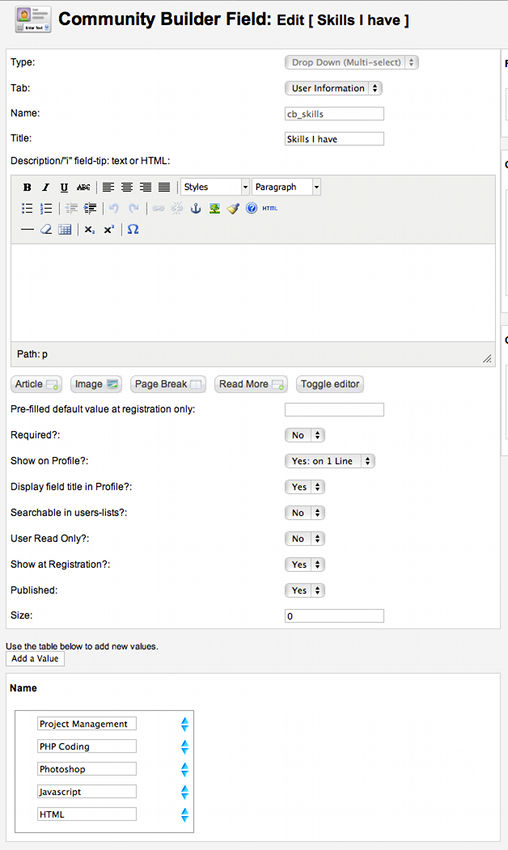
Figure 1: The multi-select cb_skills drop-down field configuration in CB Field manager
The #_comprofiler_field_values associated with the cb_skills field can be seen in figure 2 which is a screenshot of an SQL query on the values table for the cb_skills field (fieldid in the example is 99).
The actual SQL query used to generate the screensump of Figure 2 is:
SELECT *FROM `jos_comprofiler_field_values`
WHERE `fieldid` = '99'
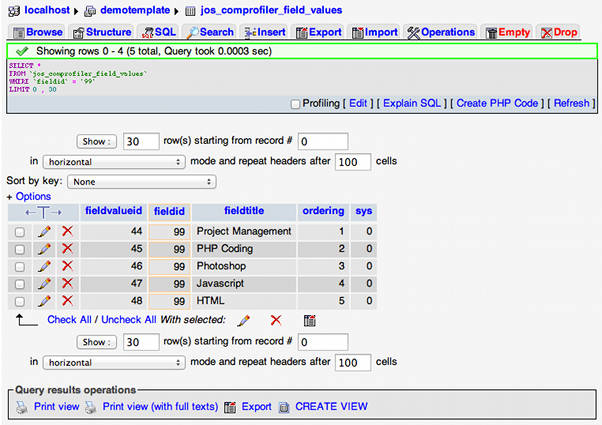
Figure 2: cb_skills option values as they are stored in the #__comprofiler_field_values table
At the same time we would like users to indicate in a different field which skill sets they need assistance with. There is no field copy function in Community Builder. One method with be to manipulate the #__comprofiler_field_values table to manually (SQL programming skills needed) replicate at the database level the option values for the new fieldid.
Another cool method is to use the CB Query field type (Professional membership needed to download the CB Query field plugin) and query the #__comprofiler_field_values table to grab the existing option values used in the hand-populated CB field.
The resulting CB Query field has the configuration shown in figure 3. We see that in this example we are sorting the values by their name (fieldtitle) and thus the drop-down values will appear in alphabetical order.
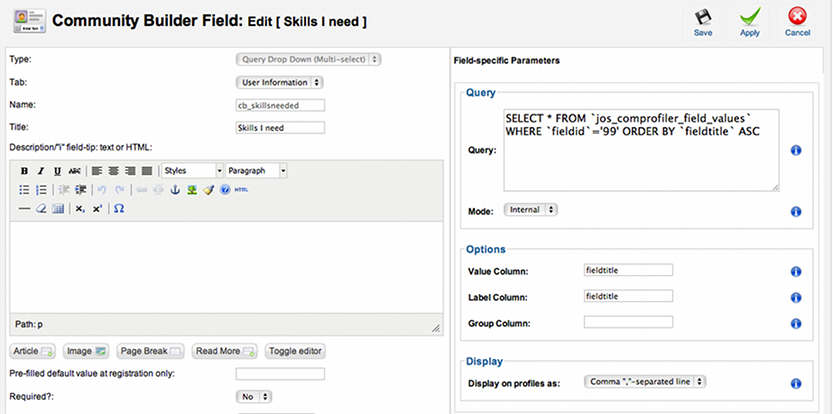
Figure 3: cb_skillsneeded field configured as a Query Drop Down (Multi-select) field type
To illustrate the results figure 4 shows the original cb_skills field and the new cb_skillsneeded field on our registration form.
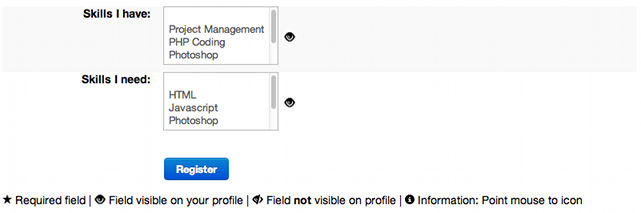
Figure 4: CB Registration form with resulting fields
If we want we can alter the CB Query field SQL statement in figure 3 to sort values by the orderid field of the values table as follows:
SELECT *FROM `#__comprofiler_field_values`
WHERE `fieldid` = '99' ORDER BY `ordering` ASC