



Use Case Overview
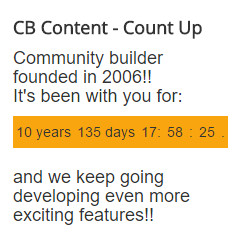
Using CB Content Module, you can create a count up banner and display it in any position of your template, even inside an article.With it, you will be able to display something like this:
Let's get started!
Create CB Content Module instance
From your Joomla -> Extensions -> Module page, do the following:- Click New Button
- In the list that appears SELECT CB Content
- Populate module's title (e.g. CB Content - Count Up)
Populate Module Text Parameter Area
In the text parameter area of module tab paste the following code segment:
<div id="countup">
	<!-- You can change the next line to fit your count up module -->
	<h4> Community builder founded in 2006!!<br/>It's been with you for:</h4>
	<p id="years">00
	<span class="timeRefYears"> years
	<p id="days">00
	<span class="timeRefDays"> days
	<p id="hours">00
	<span class="timeRefHours">:
	<p id="minutes">00
	<p span="timeRefMinutes">:
	<p id="seconds">00
	<p span="timeRefSeconds">.</p>
	<!-- You can change the next line to fit your count up module -->
	<h4> and we keep going developing even more exciting features!!</h4>
</div>
Populate Module Javascript Parameter Area
In the Javascript parameter area of the module tab paste the following code segment:
window.onload=function() {
	// Month,Day,Year,Hour,Minute,Second
	upTime('mar,05,2006,00:00:00'); // ****** Change this line!
};
function upTime(countTo) {
	now = new Date();
	countTo = new Date(countTo);
	difference = (now-countTo);
	days=Math.floor(difference/(60*60*1000*24)*1);
	years = Math.floor(days / 365);
	if (years > 1){ days = days - (years * 365)}
	hours=Math.floor((difference%(60*60*1000*24))/(60*60*1000)*1);
	mins=Math.floor(((difference%(60*60*1000*24))%(60*60*1000))/(60*1000)*1);
	secs=Math.floor((((difference%(60*60*1000*24))%(60*60*1000))%(60*1000))/1000*1);
	document.getElementById('years').firstChild.nodeValue = years;
	document.getElementById('days').firstChild.nodeValue = days;
	document.getElementById('hours').firstChild.nodeValue = hours;
	document.getElementById('minutes').firstChild.nodeValue = mins;
	document.getElementById('seconds').firstChild.nodeValue = secs;
	clearTimeout(upTime.to);
	upTime.to=setTimeout(function(){ upTime(countTo); },1000);
}
You can of course make changes to the messages displayed and the start date (as pointed our in the segments).
Populate Module CSS Parameter Area
In the CSS paramater area paste the follwoing segment:
#countup p {
	display: inline-block;
	padding: 6px 3px;
	background: #FFA500;
	margin: 0 0 10px;
}
You can modify this css code to best fit your template and coloring scheme.
Final Configuration Settings and Save.
Make the following final changes:
- SELECT the module position (e.g Position 7 for Protostar template)
- SELECT Access Level (e.g. Public)
- Publish your module
- Save the module and go to your front end to see the results.
Thank you for reading!